 Record of Processing Activities
 Transfer Impact Assessment
 Privacy Impact Assessment
 Cybersecurity Controls
 Cybersecurity Risk Management
 Asset Inventory Management
 Interactive Awareness Program





Onboarding
Task Lifecycle: From Creation to Closure — Docs
How a compliance task moves from creation to closure in Unicis Platform — status meanings, how changes are tracked, and how to unstick a task.
Every task in Unicis Platform moves through a predictable lifecycle. Understanding it helps your team know exactly where a piece of compliance work stands.
The Lifecycle
Created → In Progress → Evidence Added → Reviewed → Closed| Stage | Status Value | What Happens |
|---|---|---|
| Created | To Do | Task is created with a title, description, priority, and due date |
| In Progress | In Progress | Work begins — attachments and linked controls are added |
| Evidence Added | In Review | Supporting evidence is attached; the task is ready for a second look |
| Reviewed | Feedback or Done | A teammate reviews the evidence, leaves comments if something’s missing |
| Closed | Done (or Failed) | Task is complete, or marked as not completed successfully |
Two Ways to Move a Task
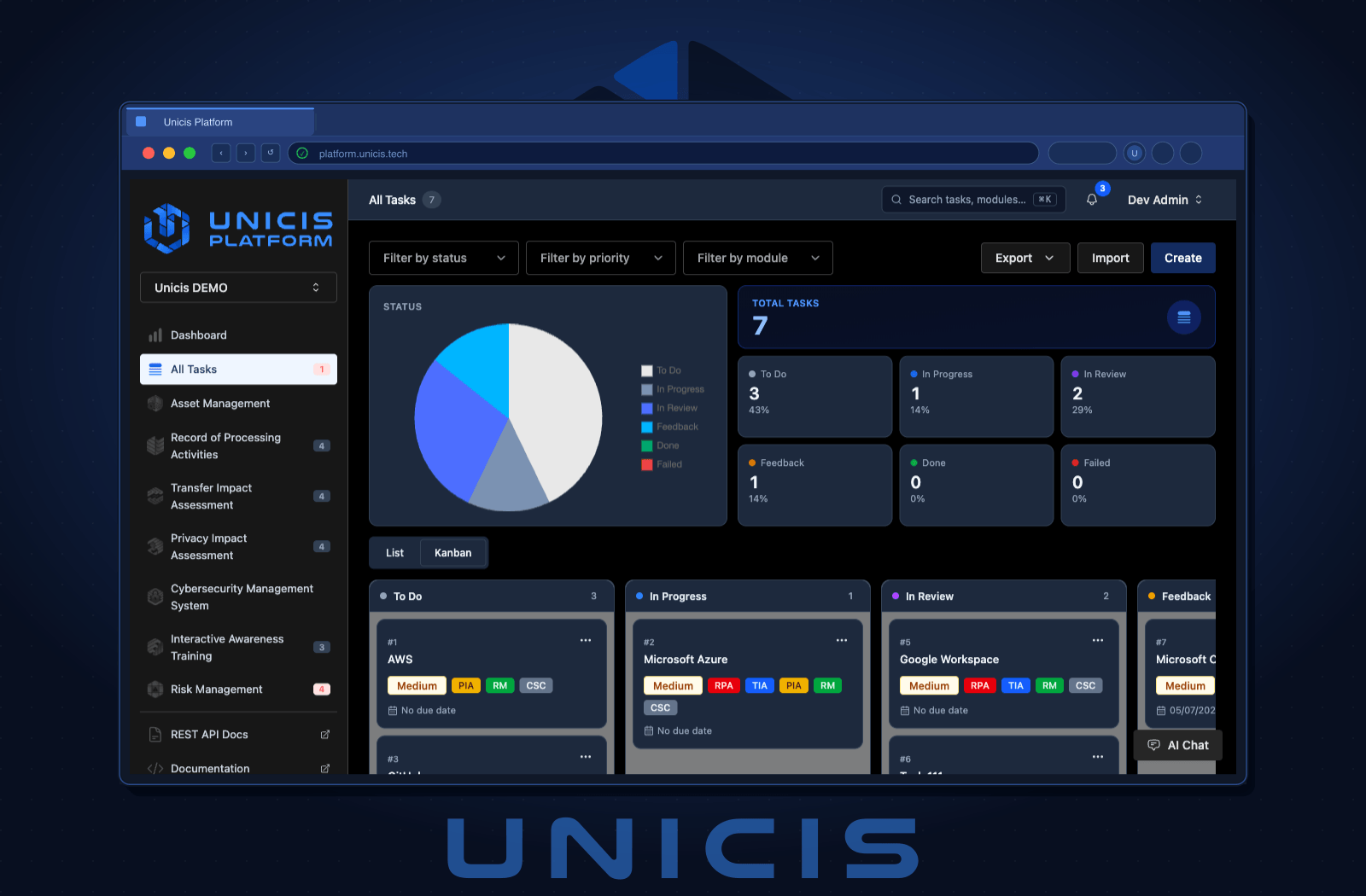
List View
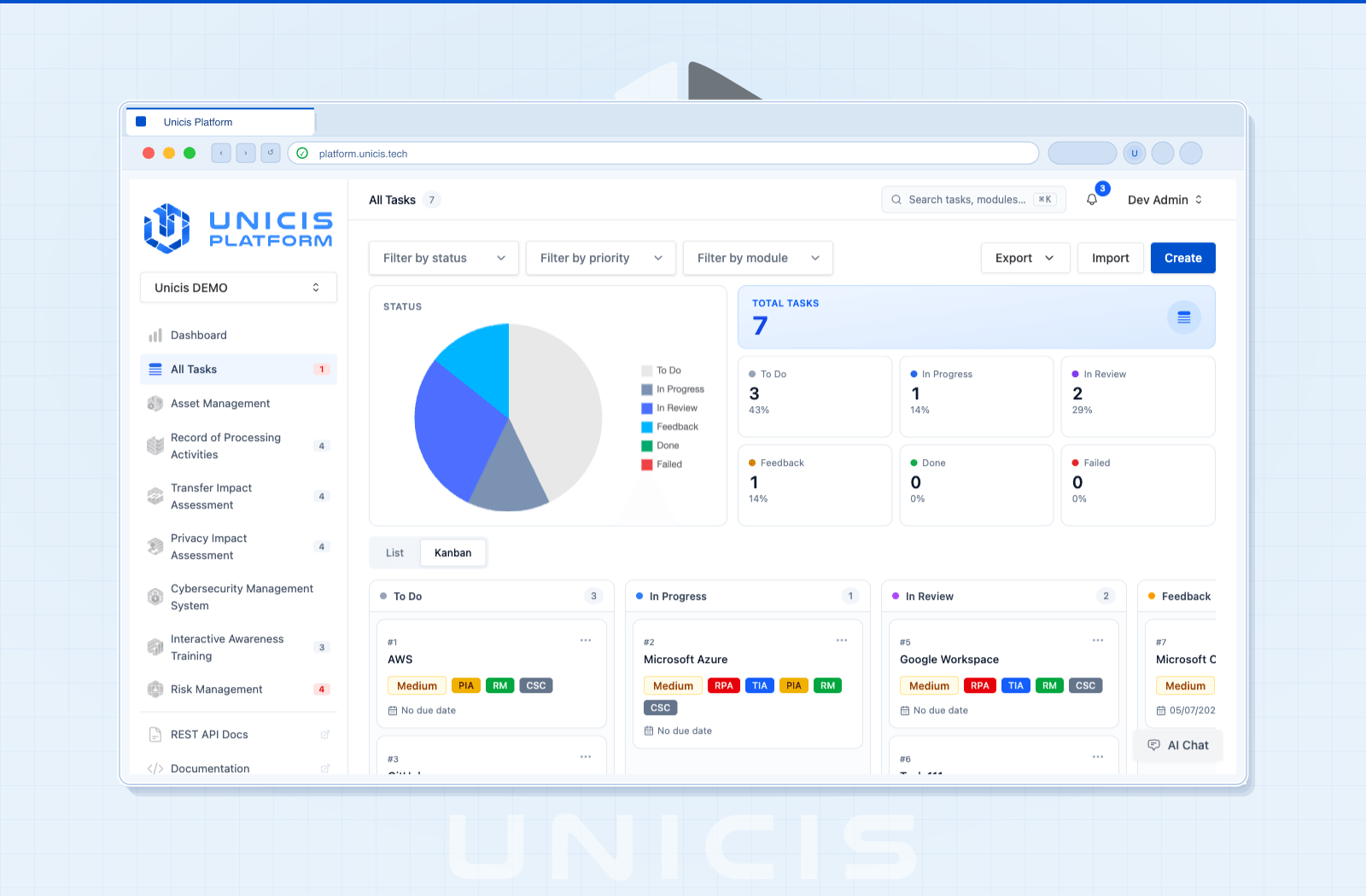
The default view — a tabular list with columns for title, status, priority, and due date. Best for filtering and sorting across many tasks at once.
Kanban Board
A visual, drag-and-drop board with columns for To Do, In Progress, In Review, Feedback, and Done. Drag a card between columns to update its status instantly.
How Progress Is Tracked (Without an Assignee Field)
Instead of routing a task through a chain of named owners, Unicis Platform tracks everything that happens to a task in two places:
Comments
Anyone on the team can post, edit, and delete comments (based on their role) directly on a task — this is where reviewers flag missing evidence or a teammate flags that they’ve started work. Comments support Markdown and emoji reactions for lightweight acknowledgement. See Tasks → Comments.
Activity Logs
Every change to a task — and to the modules linked to it (RoPA, TIA, PIA, CSC, Risk Management) — is recorded automatically in the task’s Activity tab: user name, action, date, previous value, new value. This is your source of truth for “who changed what and when,” without needing an assignment field to enforce it. See Tasks → Audit Logs.
Recurring Tasks
Some compliance activities aren’t one-off — reviews, audits, and control assessments often need to repeat. Tasks support recurrence at Daily, Weekly, Monthly, Quarterly, Annual, or Custom intervals. A recurring task displays a recurrence badge next to its title. Configure recurrence from Settings → Settings tab.
Troubleshooting: Why Is My Task Stuck?
| Symptom | Likely Cause | Fix |
|---|---|---|
| Task sits in To Do for days | Nobody has picked it up | Post a comment to flag it, or check the Activity tab to see if it’s been touched at all |
| Task stuck in In Progress | No evidence attached yet | See Attaching Evidence |
| Task bounces between In Review and Feedback | Reviewer comments not addressed | Check the Comments tab for open feedback |
| Linked control still shows Unknown | Status was never set when linking | Open the Cybersecurity Controls tab and set a maturity level |
Next Steps
Now that you understand how a task moves, the next question is usually what actually counts as proof. Continue to Attaching Evidence & Building Your Audit Trail, or go back to Your First Task for the basics.
Try this in the Unicis Platform
Community Edition is free and self-hosted. The Business Edition adds hosting, integrations and priority support.